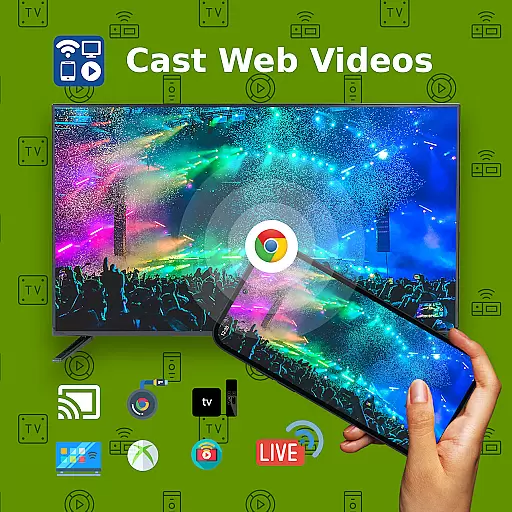
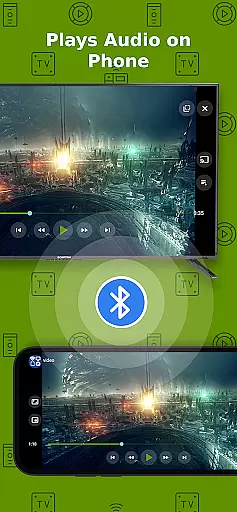
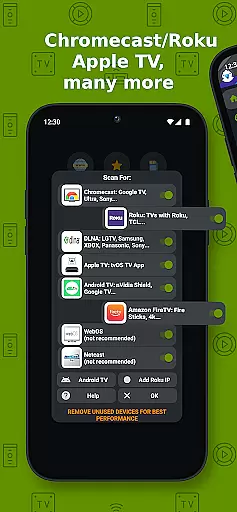
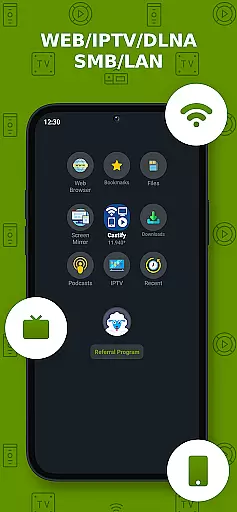
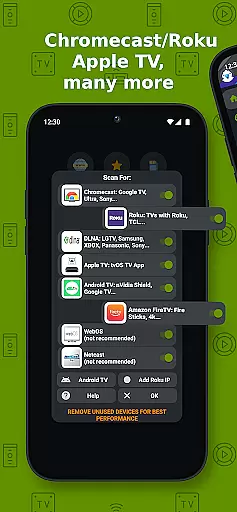
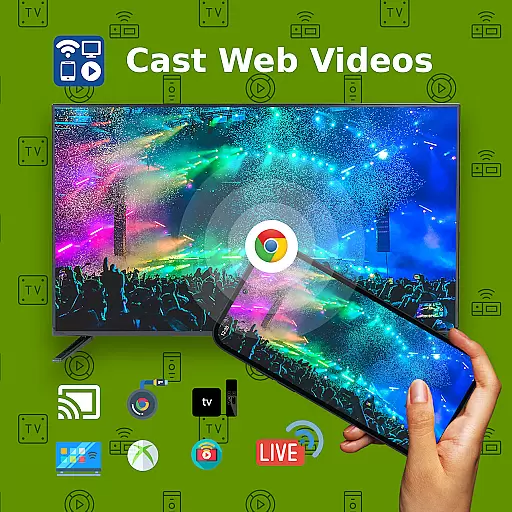
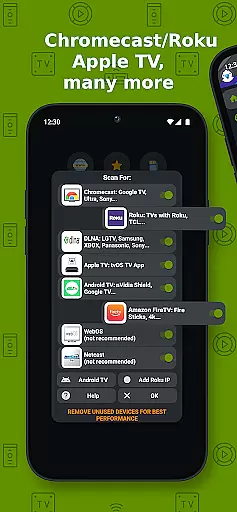
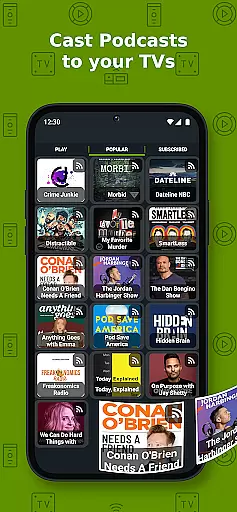
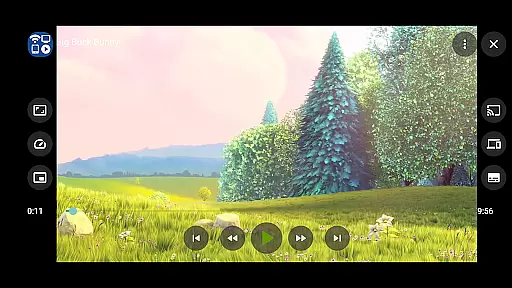
Cast to TV+ Chromecast Roku TV is a versatile streaming application that allows users to cast videos, music, photos, and other media content from their mobile devices to various streaming devices. The app supports a wide range of devices including Chromecast, Roku TV, Fire TV, DLNA receivers, Xbox consoles, and smart TVs from brands like LG, TCL, Phillips, Sony Bravia, Samsung, Sharp, Panasonic, and more.
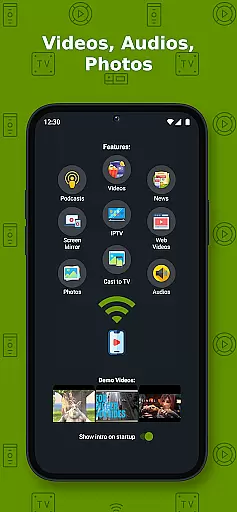
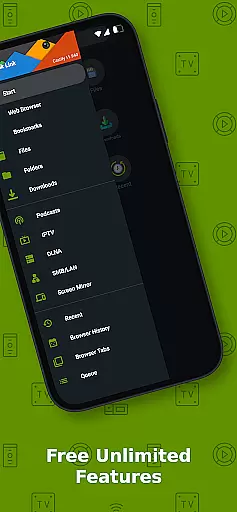
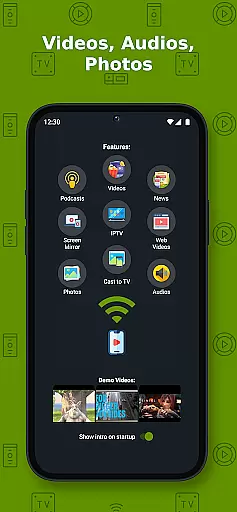
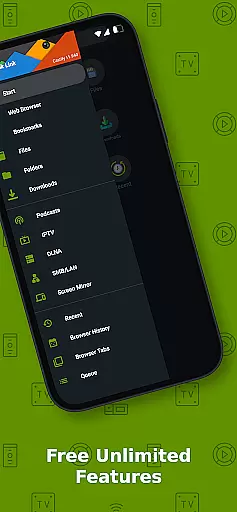
In addition to casting capabilities, the app offers advanced features such as AI Subtitle Generation and Translation, Universal Remote Controls for multiple device types, Screen Mirroring, IPTV support, and Picture in Picture (PiP). These features make it an all-in-one solution for streaming multimedia content to your television or other display devices with ease and convenience.
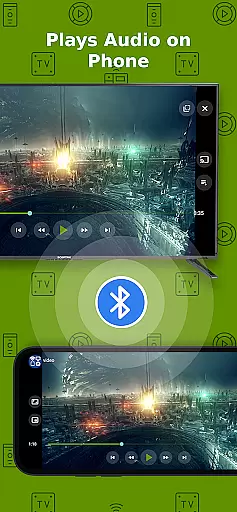
This app is particularly useful for users who want to enjoy their favorite online content on a larger screen without complicated setup processes. Whether you're streaming movies from websites, playing local files, or controlling your smart TV, Cast to TV+ provides a seamless experience across different platforms and devices.
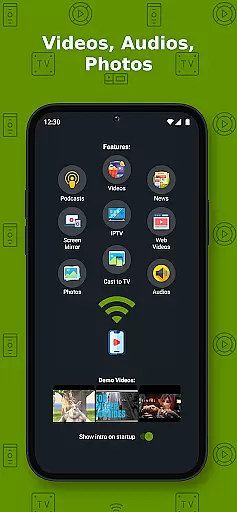
One of the standout features of Cast to TV+ Chromecast Roku TV is its extensive compatibility with various streaming protocols and devices. It supports popular formats like MP4, MKV, MP3, JPG, PNG, HTML5 video, HLS Live Streaming, and IPTV m3u playlists. This ensures that users can stream almost any type of media file they have on their phone or find online.
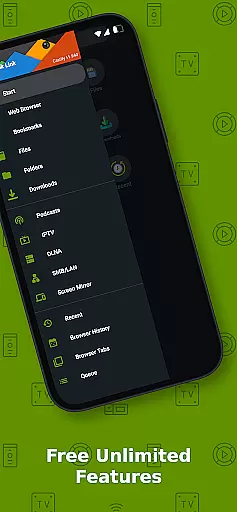
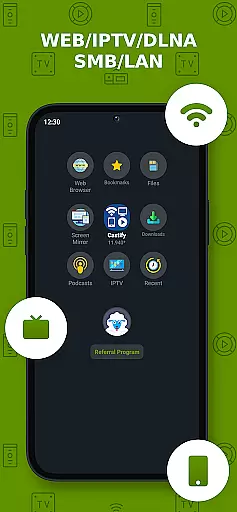
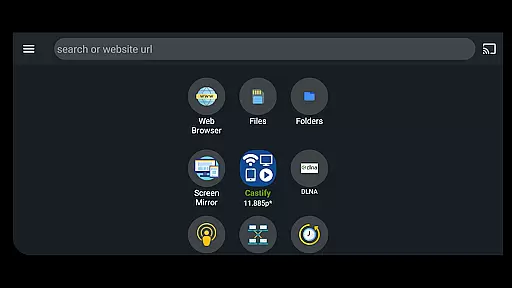
The app also includes innovative functionalities such as AI Subtitle Generation and Translation, which automatically creates and translates subtitles for videos. Additionally, it offers Universal Remote Controls for Roku, Android TV, Samsung, LGTV, and FireTV, allowing users to control their devices directly from the app. Other notable features include Screen Mirroring, Website Bookmarks, Video Search capabilities, and support for Picture in Picture (PiP) mode.
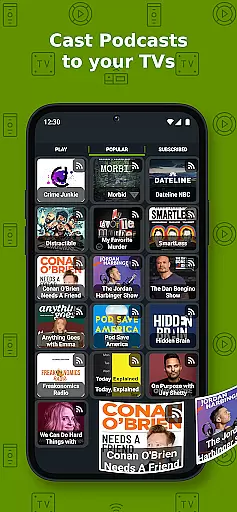
These features collectively enhance user experience by providing flexibility, convenience, and advanced control options when streaming content. The ability to cast web videos, manage IPTV streams, and use the app as a remote control makes it a powerful tool for multimedia enthusiasts looking to maximize their home entertainment systems.
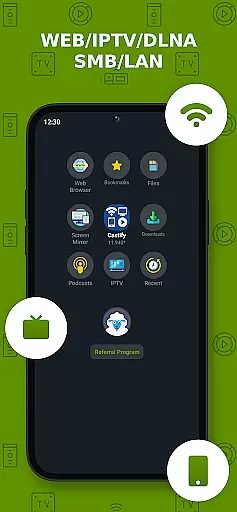
Video format compatibility is a crucial feature for any video player and editor, ensuring that users can enjoy a wide range of video content without worrying about format restrictions. Cast to TV+ Chromecast Roku TV supports an extensive array of formats including MP4, MKV, HTML5 video, HLS Live Streaming, and even 4K and HD where available. This versatility allows users to stream videos from various sources such as phone files, IPTV, DLNA servers, and SMB networks seamlessly.
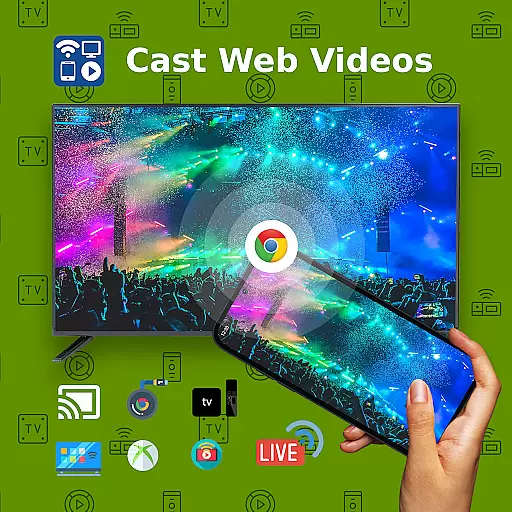
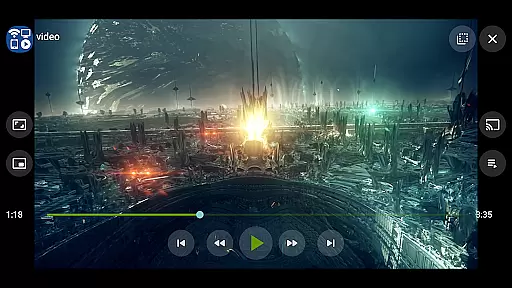
The app's ability to cast web videos found online from websites adds another layer of convenience. Whether you're streaming local files or casting from popular streaming services, the app ensures smooth playback on compatible devices like Chromecast, Roku, Xbox, and DLNA-enabled smart TVs. By supporting widely-used formats, the app caters to diverse user needs, enhancing accessibility and convenience.
Moreover, the inclusion of AI Subtitle Generate and AI Subtitle Translation features enriches the viewing experience by making content more accessible to a global audience. These innovative tools allow users to create and translate subtitles for any given video, breaking language barriers and broadening content reach. With these capabilities, Cast to TV+ Chromecast Roku TV not only meets but exceeds expectations in video format compatibility.
AI-powered editing features represent the cutting edge of video player and editor technology, offering users advanced tools to enhance their multimedia content effortlessly. Cast to TV+ Chromecast Roku TV incorporates two standout AI functionalities: AI Subtitle Generate and AI Subtitle Translation. The former creates subtitles for any video, while the latter translates SRT subtitles into different languages. These features significantly improve content accessibility and engagement for viewers worldwide.
In addition to its robust streaming capabilities, the app provides users with powerful editing options that simplify the process of managing multimedia files. For instance, the AI-driven tools enable seamless integration of subtitles into videos, making them more inclusive and easier to understand across different linguistic backgrounds. Such innovations set Cast to TV+ Chromecast Roku TV apart from traditional video players, positioning it as a leader in smart entertainment solutions.
Furthermore, the app's support for various streaming devicesu2014including Chromecast, Roku, Fire TV, and DLNA receiversu2014ensures that users can leverage these AI-powered editing features across multiple platforms. Whether casting from a phone, tablet, or computer, individuals can enjoy enhanced video experiences tailored to their preferences. By combining advanced AI technologies with broad device compatibility, Cast to TV+ Chromecast Roku TV delivers unparalleled flexibility and creativity in video editing.
User-friendly interface
Wide device compatibility
Advanced AI features
Comprehensive format support
Universal remote functionality
Limited AirPlay support
Some format restrictions
Dependent on network stability
No proprietary video casting
Possible connectivity issues
Powerful, professional, versatile teleprompter. Developed by an active film crew
 4.00
4.00
Search & download videos from net with all video downloader, auto-detect & safe.
4.60
Pro video editor app for Instagram, edit video with song, AI, effect & slowmo.
4.80
Download videos easily & play them all in one smart, powerful video manager.
3.40
Movie maker & video editing app with AI effects and green screen
4.30
Fast & Private Video Downloader App. Save all videos easily from the Internet.
4.40
Watch IPTV on your Android device
4.60
Video&Drama Player All Format is a HD video player, music player
3.00
Manage your YouTube channel on the go
4.40
An easy-to-use and all-round screen recorder with audio
4.80
Download videos and play them offline
4.70
Video Downloader, Multiple Resolution Options, Video Player
4.50
Full HD Video mp3 Player, MP4 player play 1080p, File manager, Video Downloader
4.40
Download website videos fast&privacy
4.40
Powerful Video Editor & Photo Editing App —— Quick Edits & Stunning Effects!
4.30
Online Videos Player
3.90
Capture images & record videos for USB Camera, Webcam, Microscopes, Endoscopes
3.80
IPTV Player - Watch live TV from m3m & m3u8 playlist, stream IPTV on mobile
3.30
The essential companion to your Blue Iris PC software
2.50




User Reviews